Connect HeyReach to Outreach Magic
Webhook setup guide for unified email + LinkedIn outreach analytics
Integrating HeyReach with Outreach Magic lets you stream LinkedIn events into your unified outreach timeline. This eliminates manual CSV merges and enables multichannel analytics across email + LinkedIn.
Follow this guide to send all HeyReach events into Outreach Magic using webhooks.
- Real-time LinkedIn event streaming
- Unified timeline view of all outreach activities
- Multichannel reporting in a single dashboard
- No manual CSV merges required
Webhook
https://webhooks.outreachmagic.io/heyreach?token={{YOUR_TOKEN}}Get your token from the HeyReach integrations page in Outreach Magic.
Name the Webhook, Paste the URL & Select Required Events
When creating each webhook in HeyReach, use the name "Outreach Magic", paste your webhook URL from above, and enable the events below. HeyReach uses one webhook per event type—create a webhook for each event you want to report.
Selected (Required for full reporting):
- • Connection Request Sent
- • Connection Request Accepted
- • Message Sent
- • Every Message/Inmail Reply Received
- • Inmail Sent
- • Follow Sent
- • Liked Post
- • Viewed Profile
- • Completed Campaign
- • Lead Tag Updated
Not Selected:
- • First Message Reply Received
- • First Inmail Reply Received
HeyReach Webhook Setup (Outreach Magic Integration)
Follow these step-by-step instructions to connect HeyReach to Outreach Magic via webhook.
- 1
- 2

Select HeyReach and Copy the Webhook URL
Click the HeyReach integration tile, then click Copy Webhook URL.
Keep this webhook URL secure. It's unique to your Outreach Magic account and will be used to authenticate incoming events from HeyReach.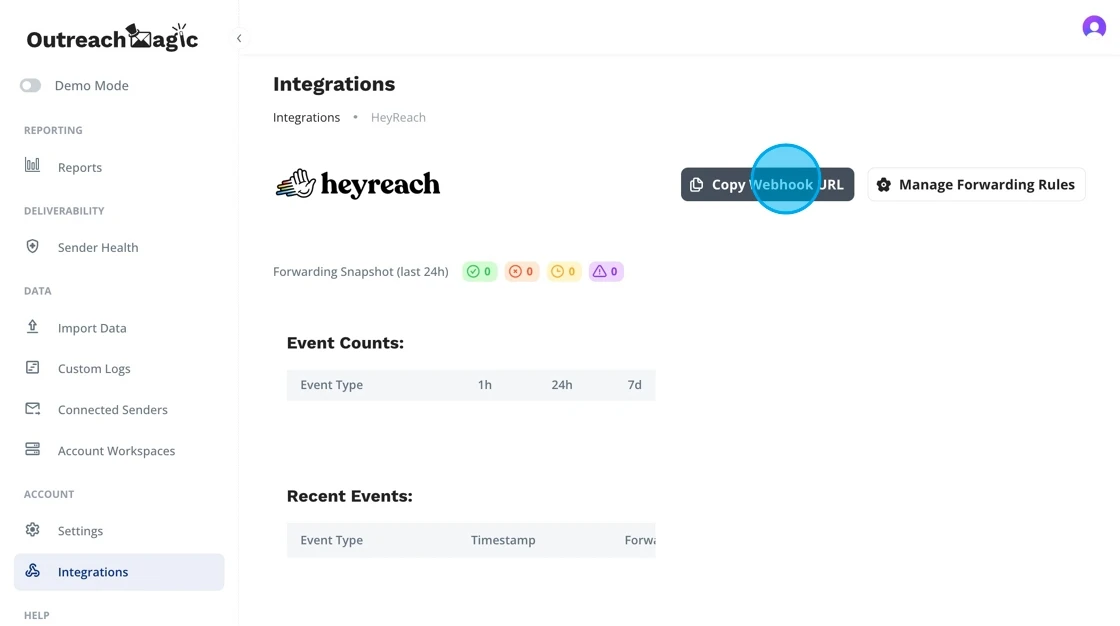
- 3
Open the HeyReach Webhooks Section
Inside HeyReach, navigate to the Webhooks settings.

- 4
Create a Webhook for Every HeyReach Event Type
HeyReach requires a separate webhook per event.
You'll need to create 10+ webhooks, all pointing to your Outreach Magic webhook URL. Use the Selected (Required for full reporting) list above to know exactly which events to enable.This ensures Outreach Magic receives all LinkedIn events for full multichannel visibility. Each event type (connection request, message sent, profile view, etc.) needs its own webhook configuration.
- 5
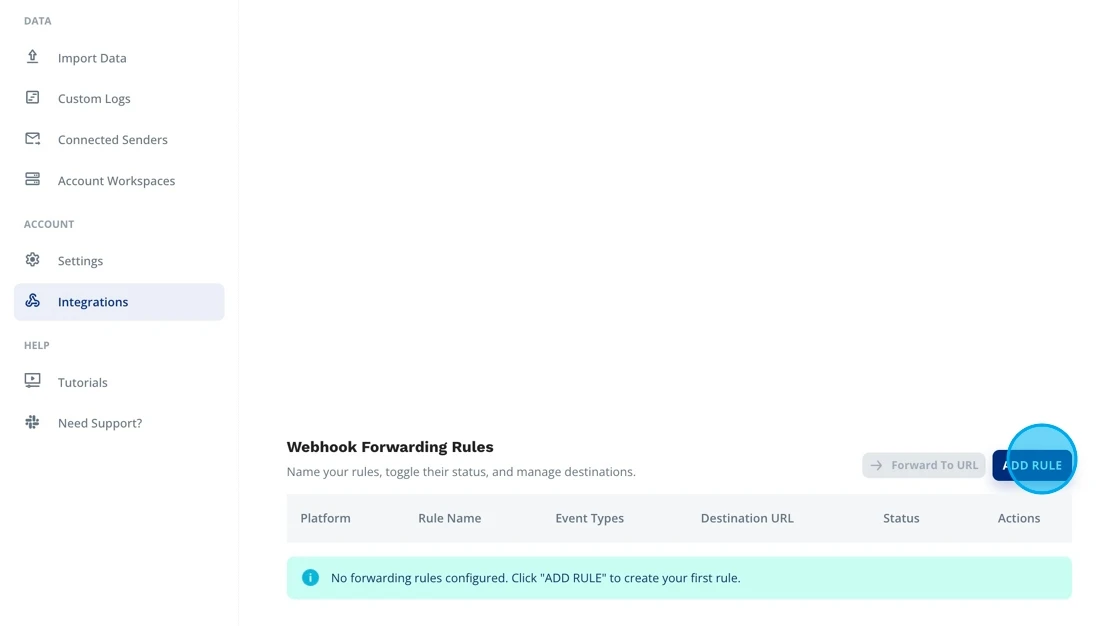

Configure Forwarding Rules in Outreach Magic (Optional)
If needed, set up forwarding rules inside Outreach Magic to automatically route incoming LinkedIn events to other tools via webhook forwarding.
This supports multichannel orchestration.
- 6
Outreach Magic Will Forward Events With Detailed Logging
Any forwarded HeyReach events include logging for:
- Forwarded payloads
- Errors
- Delivery attempts
This helps troubleshoot complex multi-integration stacks.
- 7

View LinkedIn Senders in Outreach Magic
As soon as events begin flowing, your LinkedIn senders will appear inside the Connected Senders section.
This completes your HeyReach → Outreach Magic webhook integration.
 Integration Complete! Your webhook is now configured. HeyReach events will automatically sync to Outreach Magic for unified reporting.
Supported HeyReach Webhook Events
We support processing the following webhooks from HeyReach (raw payload event types):
- campaign_completed
- connection_request_accepted
- connection_request_sent
- every_message_reply_received
- inmail_reply_received
- inmail_sent
- lead_tag_updated
- liked_post
- message_reply_received
- message_sent
- viewed_profile
What Happens Next
Automatic Event Streaming
Once configured, HeyReach will automatically send LinkedIn events to Outreach Magic in real-time. No manual CSV exports or merges needed.
Unified Timeline
Your LinkedIn outreach from HeyReach will appear alongside email activities in a single, unified timeline in Outreach Magic.
Real-Time Analytics
Access real-time analytics, deliverability diagnostics, and multichannel reporting as events flow into Outreach Magic.
Multichannel Attribution
Get clear attribution across email and LinkedIn channels, helping you understand which channels drive the best results.
Troubleshooting
Events Not Appearing in Outreach Magic
- • Verify the webhook URL was copied correctly (no extra spaces or characters)
- • Check that you've created webhooks for all event types you want to track
- • Ensure all webhooks are active in HeyReach's webhook settings
- • Wait a few minutes for events to sync (there may be a slight delay)
- • Verify that events are being triggered in HeyReach (send a test connection request or message)
Webhook URL Not Working
- • Make sure you're using the webhook URL from your Outreach Magic integrations page
- • Verify the URL starts with
https:// - • Try copying the webhook URL again from Outreach Magic
- • Check that your Outreach Magic account is active
- • Ensure the token parameter is included in the URL
Missing Event Types
- • Remember that HeyReach requires a separate webhook for each event type
- • Check that you've created webhooks for all the event types you need (connection requests, messages, profile views, etc.)
- • Verify each webhook is pointing to the same Outreach Magic webhook URL
- • Review the HeyReach webhook settings to ensure all desired events are configured
Need Additional Help?
If you're still experiencing issues, reach out to our support team or check the Outreach Magic integrations page for additional resources.
Contact SupportReady to Connect HeyReach?
Set up your webhook integration and start unifying your email + LinkedIn outreach analytics.